
Hi, this is OC Papa. A few days ago I rebooted my Mac, and afterward it got so slow I could barely run a single program. So I opened Activity Monitor and checked for myself what the problem was. Today I’m sharing what I found, especially how to lighten the load with Spotlight settings.
What Activity Monitor showed
My Mac is an 8-core Intel with 16GB of memory. Here’s what it looked like when I checked.
- Load Average was 57. With 8 cores, it should normally be under 8.
- Swap was using 4.4GB out of 5GB. When memory runs short, the Mac borrows disk space instead, so of course it gets slow.
What was slowing it down
- Spotlight indexing: Right after the reboot, the mds, mds_stores, and corespotlightd processes were running at full tilt.
- High WindowServer CPU usage: A big part of this was using an external monitor connected through DisplayLink.
- Chrome tabs: There were a bunch of renderer processes, each using around 250-330MB of memory.
- Microsoft Defender: It kept running, but since this is a company-managed Mac, it’s best not to turn off security software on your own.
- Login Items: Things like Dropbox and OneDrive launch at startup too.
So what is indexing?
Indexing is when Spotlight scans through your file names and contents ahead of time and builds a list (an index) for searching. That’s why results show up instantly when you search with Cmd+Space. Right after a reboot or an update, this uses a lot of CPU and disk, but it usually calms down after an hour or two.
Then, “Can’t I make it index only when I search?” I wondered the same thing, but there’s no such setting. Spotlight doesn’t dig through files the moment you search; it pulls results from the index it built in advance.
Add big folders to the Spotlight Privacy list
What you can do is reduce how much gets indexed, by excluding large folders.
- In System Settings, select “Siri & Spotlight.”
- Click the “Spotlight Privacy…” button near the bottom.
- Click the + button at the bottom left and choose a folder to exclude. Places like your Dropbox folder or
~/Library/CloudStorage/OneDrive-...are good candidates. If you can’t see the folder, press Cmd+Shift+G and type the path directly. - Click “Done.”
Folders you add here won’t be indexed, which lightens the load. The trade-off is that files inside them won’t show up in Spotlight search. If you need to, you can remove a folder again with the – button in the same window, and it will start being indexed again from then on.
Trim down Results from System
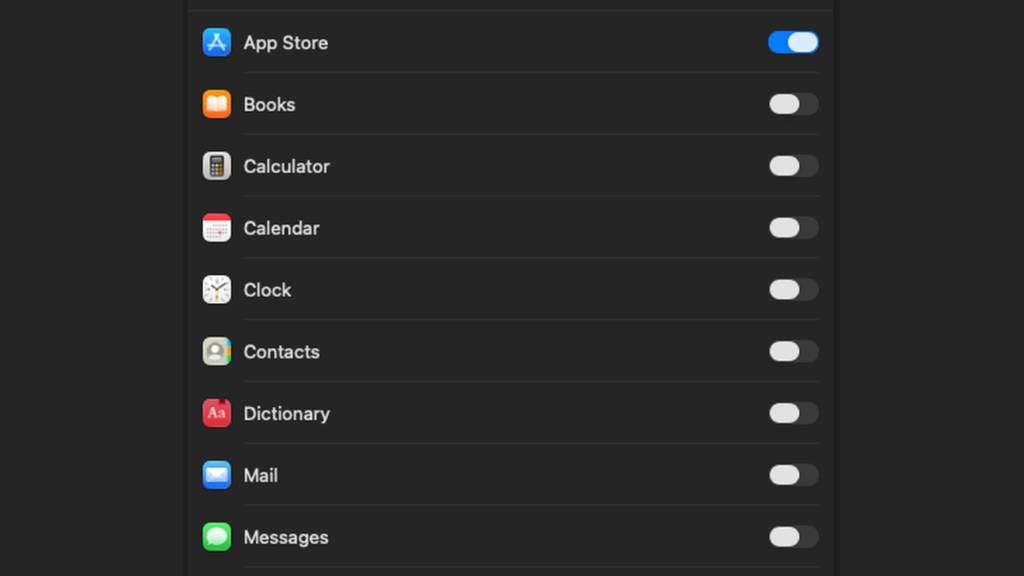
On the same Siri & Spotlight screen, there’s a “Results from System” list. You can turn off the items you don’t use here.
- iPhone Apps, Menu Items: Turn them off if you don’t use them.
- Scroll down and you’ll also find Mail & Messages, Documents, PDF, and so on. Turn off the ones you don’t use.
- Keep Apps, Files, and Folders on, since you really need them for file search.
Other things worth trying
- Close Chrome tabs you’re not using, or turn on Chrome’s Memory Saver
- To ease the load on WindowServer, turn on Reduce Transparency and lower your external monitor’s resolution
- In System Settings > General > Login Items, turn off only the ones you don’t need
- Right after a reboot, give it an hour or two for indexing to finish
Just a heads-up: menu names and locations may differ a bit depending on your macOS version.
I hope this helps anyone who’s been frustrated by a Mac that suddenly got slow, like mine did. I’ll write up more useful tips as I come across them. Have a great day!
